
Harsh Goyal
Developer
Category: Engineering
Harsh Goyal
Developer
A card moving twenty pixels across the screen can look more dramatic than a headline sharpening gently from blur, yet the card may still be cheaper to animate. Blur often costs more because the browser has to calculate new filtered pixels from neighboring pixels, while a transform can often reposition an already-rendered surface.
Before choosing an animation, ask what changes, how much of the page it affects, how often it runs, what else is changing around it, and what hardware has to render it. A compact blur that runs once may be completely reasonable. A viewport-sized filtered layer changing continuously over animated content deserves more scrutiny.
This is why "use CSS" is not a performance strategy, and neither is "the GPU handles it." CSS can describe both cheap and expensive rendering work. GPU acceleration can make some work more efficient, but it does not remove the work itself. The browser still has to calculate geometry, generate pixels, apply filters, composite surfaces, or perform several of those jobs together.
Blur is a useful case study because the effect can look visually restrained while asking the browser to process a large amount of image data.
The Browser Sees Rendering Work, Not Animation Style
When something changes visually, the browser may perform style calculation, layout, paint, and compositing. The exact path depends on the property being changed and how the page is structured.
MDN's animation performance guidance explains this rendering pipeline and notes that properties such as transform and opacity can often avoid some of the layout and paint work triggered by geometry changes. Learn More
Consider two ways to move a card horizontally. Changing layout-related properties can require the browser to recalculate geometry and repaint affected content. Moving the same card with transform can often let the browser reposition an already-rendered surface during compositing. To the user, both interactions may look almost identical. To the browser, they can be very different jobs.
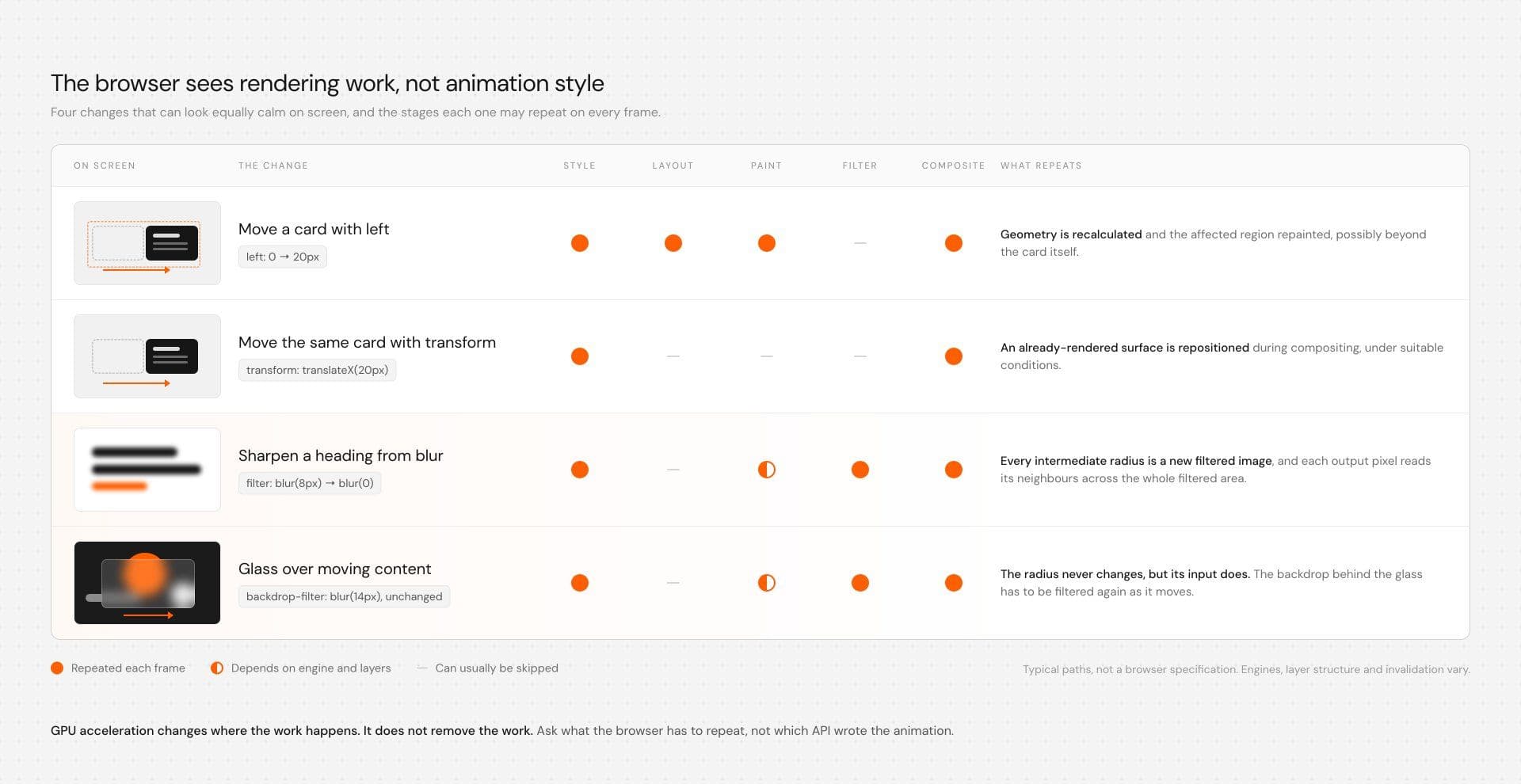
Layout deals with geometry. Width, height, positioning, and surrounding flow can affect where elements belong on the page. If a property changes geometry every frame, the browser may have to recalculate more than the element that appears to be moving.
Paint generates the pixels for text, images, backgrounds, shadows, borders, and other visual content. Repainting a small badge and repainting most of a hero are not equivalent simply because both are driven by one CSS declaration. The size of the affected region matters.
Compositing combines rendered surfaces into the final frame. This is why transform and opacity are often attractive for movement and fades. Under suitable conditions, the browser can update the final composition without repainting the element itself.
The useful question is not whether an animation was written in CSS, JavaScript, GSAP, or Motion. The useful question is what rendering work the browser has to repeat.
GPU Accelerated Does Not Mean Free
GPU acceleration is often treated as a performance verdict. If an effect can execute on the GPU, developers sometimes assume the investigation is finished.
The GPU still has to do the requested work.
Chrome's engineering article "Animating a blur" is useful because it explains how blur could be executed in GPU shader work in the implementation discussed there while still remaining computationally significant. Blur requires neighboring pixel information, so the operation is fundamentally different from simply moving an existing surface. Learn More
That article is from an earlier Chrome implementation and should not be read as a benchmark for every modern browser. The larger lesson remains useful: GPU acceleration changes where work happens. It does not eliminate the work.
A large filtered surface is still large. A continuous effect still runs across many frames. Several GPU-heavy effects can still compete for resources. Desktop hardware can also make an implementation appear healthier than it feels on a phone.
The better questions are about the affected surface, update frequency, overlap, source changes, and target hardware.
Why Blur Can Become Expensive
A blur operation cannot generally calculate each output pixel from only that same input pixel. It needs information from surrounding pixels. That makes the amount of filtered content an important part of the cost.
Consider the same declaration on two different elements:
.badge { filter: blur(8px);}.hero-visual { filter: blur(8px);}The blur radius is identical, but the workload may be very different. A badge might occupy a tiny region of the page, while a hero visual could cover most of the viewport.
If that blur value changes over time, the difference is repeated across the animation.
This is why visual subtlety is a poor performance metric. A small icon rotating 180 degrees looks like obvious animation. A full-screen image moving from blur(16px) to blur(0) can feel calm and atmospheric. The quieter effect may still deserve the more careful test.
The actual affected surface matters too. A filtered element can extend beyond what is visually obvious because of clipping, transforms, oversizing, or offscreen content. When profiling, inspect the rendered area rather than judging only from what appears prominent in the design.
Static Blur and Animated Blur Are Different Decisions
A static filter and an animated filter should not automatically be treated as the same performance problem.
If the filter value and source pixels remain stable, the browser may be able to reuse some previously produced output depending on the engine, invalidation conditions, layer structure, and other changes on the page. That behavior is implementation-dependent, so static blur should not be called free.
Animated blur is easier to question because the filter itself changes. Each intermediate state needs to be represented visually, and that work repeats throughout the transition.
A short heading reveal using a small blur once is a very different production decision from a full-screen layer that pulses between blurred states indefinitely.
Duration and replay behavior matter just as much as property choice.
Backdrop Blur Has a Different Rendering Context
The filter property changes the element itself. backdrop-filter applies an effect to pixels behind an element, which is what makes frosted-glass interfaces possible.
That difference becomes important when the backdrop changes.
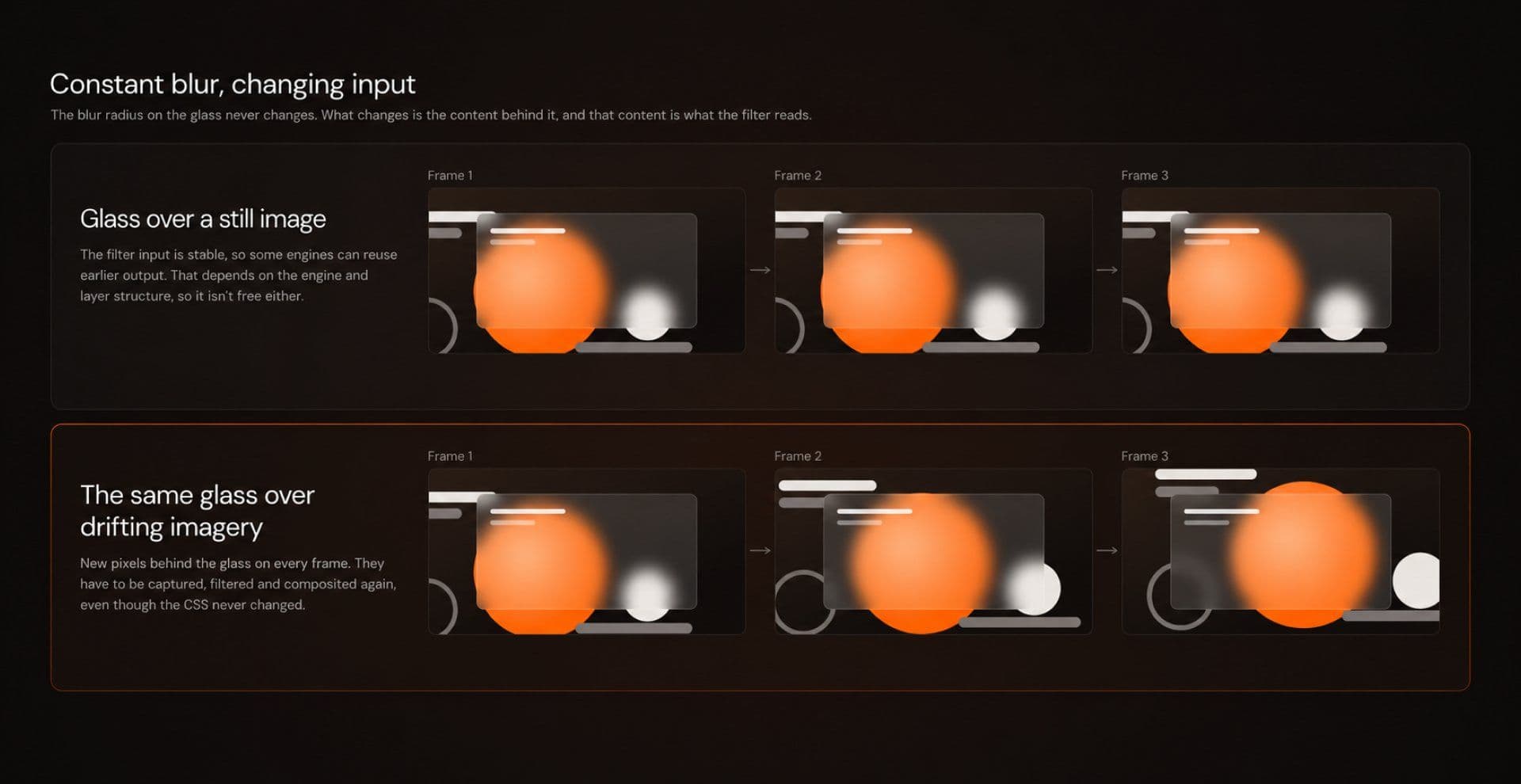
A translucent navigation bar over a static background is one case. A glass panel over moving imagery is another. If content scrolls or animates underneath the glass, the pixels feeding that backdrop keep changing even when the blur radius stays constant.
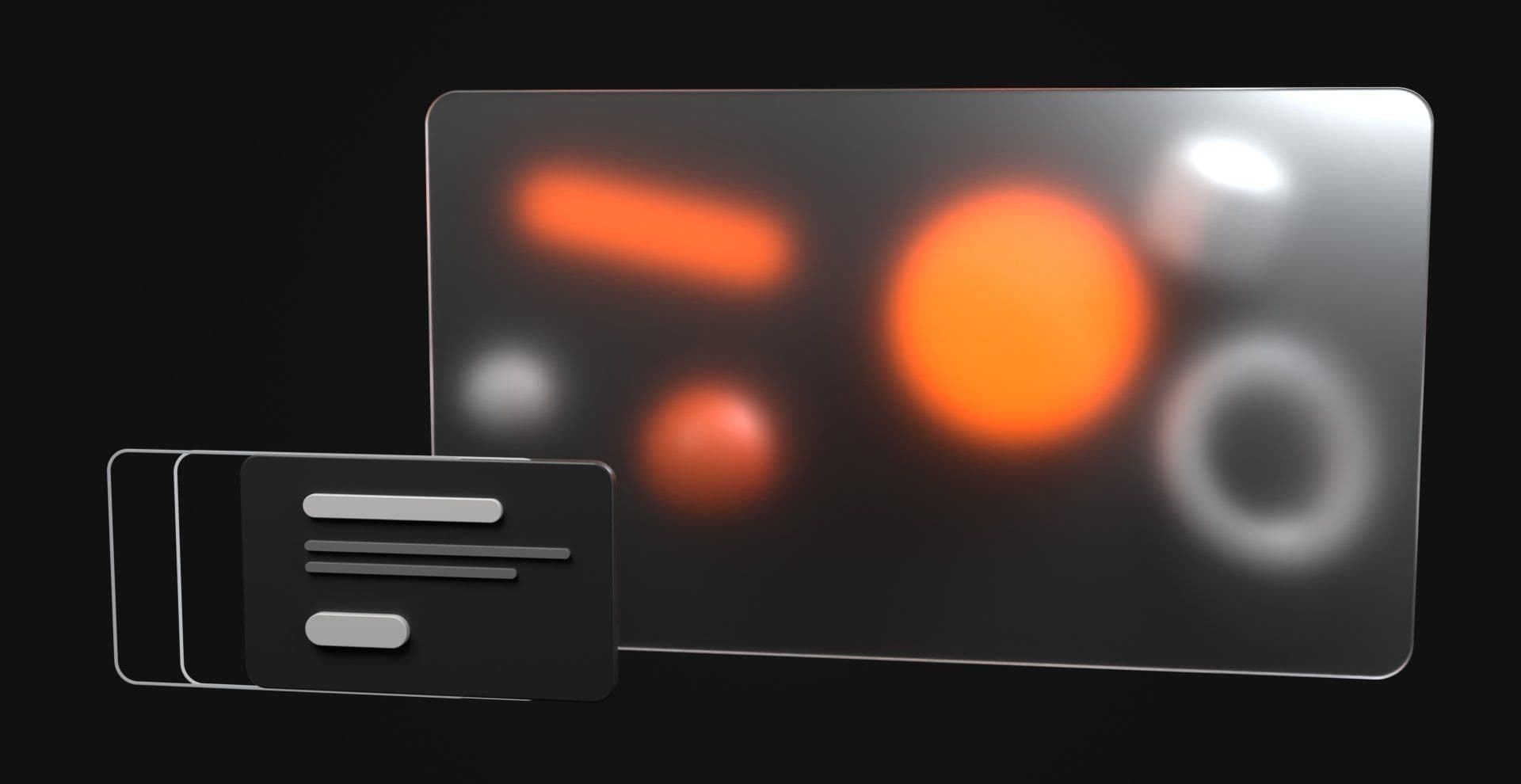
WebKit's original engineering explanation describes backdrop filtering as capturing backdrop content, applying the filter, and compositing the result. That description is specific to WebKit's implementation, so it should not be generalized into a universal browser pipeline. Learn More
MDN documents backdrop-filter behavior and current browser support. Learn More
The practical lesson is to test glass effects inside the page where they will actually live. A static card in a component preview is not a meaningful proxy for the same treatment over moving imagery, scrolling content, or several overlapping translucent panels.
Evaluate Blur Cost Across Five Variables
Property blacklists are convenient, but they are too crude for production decisions.
A more useful model is to evaluate five variables:
| Variable | Question |
|---|---|
| Operation | What rendering work does the change request? |
| Area | How large is the affected region? |
| Frequency | Is the effect one-shot, scroll-linked, or continuous? |
| Context | What changes underneath or beside it? |
| Hardware | What device ultimately renders it? |
This is not a standardized browser formula. It is a diagnostic framework.
The same filter can behave differently when applied to a small label, a full-screen image, or a translucent panel over constantly moving content. The filter value matters less without knowing the affected area and update frequency.
Test the Same Blur at Different Sizes
A simple experiment can show how surface area changes the result.
Create two containers that render the same image at different dimensions:
.test-small { width: 320px; height: 180px;}.test-large { width: min(100%, 1440px); height: 80vh;}Keep the image treatment identical:
.test img { width: 100%; height: 100%; object-fit: cover;}Use one blur animation for both:
@keyframes reveal-blur { from { opacity: 0; filter: blur(8px); } to { opacity: 1; filter: blur(0); }}Apply the same timing:
.reveal-blur { animation: reveal-blur 700ms ease forwards;}For a useful comparison, keep the browser, hardware, viewport, source image, blur radius, duration, easing, and surrounding page activity the same. Change only the rendered filtered area between the two runs.
Record more than one run as well. Individual frames, browser background activity, and system load can introduce noise.
This test does not prove that large blur is always slow. It shows whether increasing the filtered area changes performance in the environment you care about.
Compare Blur With a Different Visual Treatment
A transform and opacity reveal is useful as a design alternative, but it is not a pure property-for-property comparison because the visual effect itself changes.
That distinction matters.
A simple reference animation might be:
@keyframes reveal-move { from { opacity: 0; transform: translateY(16px); } to { opacity: 1; transform: translateY(0); }}Apply the same duration and easing:
.reveal-move { animation: reveal-move 700ms ease forwards;}This comparison answers a practical design question rather than a laboratory one: can a simpler entrance produce the same perceptual result with less rendering work?
If the blur treatment looks meaningfully better and performs comfortably on target devices, keep it. If the visual difference is minor and the performance difference is obvious, the simpler transition may be the stronger production choice.
Test Backdrop Blur Separately
Backdrop blur deserves its own experiment because the rendering situation is different.
Use a moving backdrop:
.scene__visual { animation: drift 6s ease-in-out infinite alternate;}Place a static glass surface above it:
.glass { position: absolute; inset: 15%; background: rgb(255 255 255 / 0.12); backdrop-filter: blur(14px);}Move the content underneath:
@keyframes drift { to { transform: translate3d(6%, -3%, 0) scale(1.08); }}This experiment asks a different question from the animated filter test: what happens when the filter value remains constant but the pixels behind it continue changing?
That scenario appears frequently in navigation bars, hero sections, product showcases, and glass-heavy interfaces. It should be profiled separately rather than treated as another version of the same blur animation.
How to Profile CSS Animation in Chrome DevTools
Profiling becomes much more useful when you compare controlled versions of one interaction rather than looking at an isolated trace.
Chrome's Performance panel provides frame timing and main-thread activity, while its Rendering tools provide diagnostics such as Paint flashing.
Start with a production build or production-equivalent page. Record the original interaction, then record another version with one suspected cost removed.
For example:
.hero-title { filter: none !important;}Keep duration, scroll position, images, copy, and surrounding animation unchanged.
In the Performance trace, label or note which run is which before comparing them. Capture at least two or three runs of each variant if the differences are subtle. A single trace can be influenced by unrelated system activity.
Look first at the Frames track. Check whether slow or dropped frames consistently line up with the effect being tested. If removing the blur repeatedly improves the same part of the interaction, that is useful evidence.
Then inspect the Main track. Look for scripting, style calculation, layout, paint, or unrelated work around the problem frames. This prevents blur from taking the blame for a JavaScript handler or layout measurement that is actually consuming the frame.
Paint flashing can reveal unexpectedly large repaint regions, but the absence of obvious paint does not prove an effect is cheap. GPU or compositor work can still be expensive without appearing as conventional main-thread repaint activity.
Layer inspection can help explain how the page is being composited, but the goal is not to create as many layers as possible. Layers use memory and introduce their own compositing work.
For production assets, useful screenshots include one baseline Performance trace, one trace with the suspected filter removed, and one Paint flashing capture showing the affected region. Those three images are usually more informative than a decorative before-and-after mockup.
When Blur Is Too Expensive, Cross-Fade Precomputed States
One useful alternative comes from Chrome's historical blur guidance: instead of continuously animating the blur radius, prepare two visual states and cross-fade between them.
For an image, that might mean stacking a blurred version underneath a sharp version.
<div class="image-stack"> <img src="/blurred.jpg" alt=""> <img class="sharp" src="/sharp.jpg" alt=""></div>Then animate only the opacity of the sharp layer:
.sharp { opacity: 0; animation: sharpen 700ms ease forwards;}@keyframes sharpen { to { opacity: 1; }}This approximates a transition from blurred to sharp without changing the blur radius every frame.
It is not visually identical to animating through every intermediate blur value, and it introduces trade-offs. You now have two visual surfaces, potentially more memory use, extra asset weight, and more responsive image management.
That means it should be measured, not declared universally faster.
Still, it is a useful option when the direct filter animation is too expensive and the visual goal is simply to move from soft to sharp.
Chrome's blur article discusses this precomputed-state approach in more detail. Read More
Optimize the Visual Idea, Not Just the Property
Performance work should start with the perceptual job of the effect.
Is blur establishing depth? Is it directing attention? Is it delaying clarity so the eye lands in the right place? Is it separating foreground content from an image?
Once the purpose is clear, several alternatives become easier to judge.
Reducing the filtered area is a useful first experiment. A filtered headline may preserve the idea without filtering the whole hero. A glow might be clipped closer to the object that needs it.
Reducing the blur radius can also help. A change from blur(4px) to clear may communicate softness without the heavier look of blur(20px).
Replay behavior matters too. A reveal that runs once is very different from one that restarts every time a section touches the viewport.
You can also mix smaller blur with transform and opacity:
.reveal { opacity: 0; transform: translateY(10px); filter: blur(3px); animation: settle 700ms ease forwards;}Then define the completed state:
@keyframes settle { to { opacity: 1; transform: translateY(0); filter: blur(0); }}For reduced motion, make sure the content remains visible without waiting for the animation:
@media (prefers-reduced-motion: reduce) { .reveal { animation: none; opacity: 1; transform: none; filter: none; }This does not prove the mixed version is faster. It gives you another implementation to test.
Use will-change Carefully
will-change is a rendering hint, not a performance button.
MDN recommends using it sparingly for known performance issues rather than applying it speculatively across a page. Read More
A targeted example might be:
.moving-card { will-change: transform;}This tells the browser that a change is expected. It does not guarantee a particular optimization, remove filter processing, or make an expensive effect cheap.
Profile first, add the hint where the trace supports it, and profile again afterward.
Performance Is Also a Motion Design Decision
Some performance problems are easier to prevent before implementation becomes complicated. Not every section needs ambient movement, not every card needs glass, and not every heading benefits from blur or distortion.
Motion earns its place when it guides attention, explains state, provides feedback, creates spatial continuity, controls pacing, or contributes something recognizable to the experience.
That decision also affects accessibility. prefers-reduced-motion should modify motion-heavy experiences where appropriate, but it should not be treated as a general performance mode. Content still needs to remain readable, controls still need keyboard and touch support, and focus states still need to work.
For decorative effects, the fallback can be simple. For glass surfaces, also check static contrast once movement is removed. A translucent panel that was readable over a moving composition may still need a more solid background in its reduced-motion or fallback state.
The goal is to preserve meaning and readability, not merely remove keyframes.
A Practical Pre-Ship Check
Before shipping a visually heavy interaction, verify three things.
First, diagnose the real cost. Identify what changes, how large the affected region is, how often the effect repeats, what else overlaps it, and whether the issue reproduces in a production build.
Second, test cheaper alternatives without discarding the design intent. Reduce the filtered area, lower the blur radius, remove unnecessary replay, compare a transform-based reveal, or test a precomputed blur cross-fade.
Third, verify the final implementation. Record the production version, compare traces, inspect paint and main-thread activity, test a representative mobile device, and check keyboard, touch, focus, contrast, and reduced-motion behavior.
The goal is not to avoid every expensive visual technique. Some interactions deserve more rendering work because the effect contributes something meaningful to the experience.
Blur is not inherently bad. backdrop-filter is not inherently bad. Transform is not automatically free. What matters is the work created by the actual implementation, how large and frequent that work is, and whether the target hardware can handle it comfortably.
When an effect earns its place and survives realistic profiling, ship it. When a simpler version communicates the same idea, the simpler version is usually the stronger production decision.
For teams working with editable interaction source, the same rule applies. Owning the source makes it possible to inspect whether an effect animates filters, reduce the affected area, simplify the treatment, or replace it when the page demands something cheaper. Hyperiux Vault's dependency documentation covers effect-specific requirements and reinforces the need to test performance in the production context where the interaction will actually run.
Hyperiux Vault Dependency Documentation