

Harsh Goyal
Developer
Category: Engineering
Harsh Goyal
Developer
A desktop animation can be perfectly built, beautifully paced, and completely wrong on a phone. That does not automatically mean the phone is too slow. More often, the interaction was designed around assumptions that stopped being true when the input changed from a mouse to a finger, the viewport became shorter, and the composition had to coexist with mobile browser controls.
This is where many desktop-first motion systems fail on touch. Teams build the expressive desktop version first, add a breakpoint near the end, reduce a few distances, turn down a blur value, and call the result responsive. Technically, the animation may still run. Experientially, it may no longer make much sense.
Responsive motion needs a better standard: preserve the job of the interaction, not necessarily the desktop animation that performed it. A cursor-reactive headline might become stable typography. A hover treatment might keep its visual accent while required information stays visible. A six-screen pinned story might become a vertical narrative. A heavy WebGL hero might keep a reduced rendering tier or become a carefully art-directed poster. The mobile version does not have to imitate desktop to belong to the same design system. It has to preserve hierarchy, feedback, pacing, and intent under a different set of constraints.
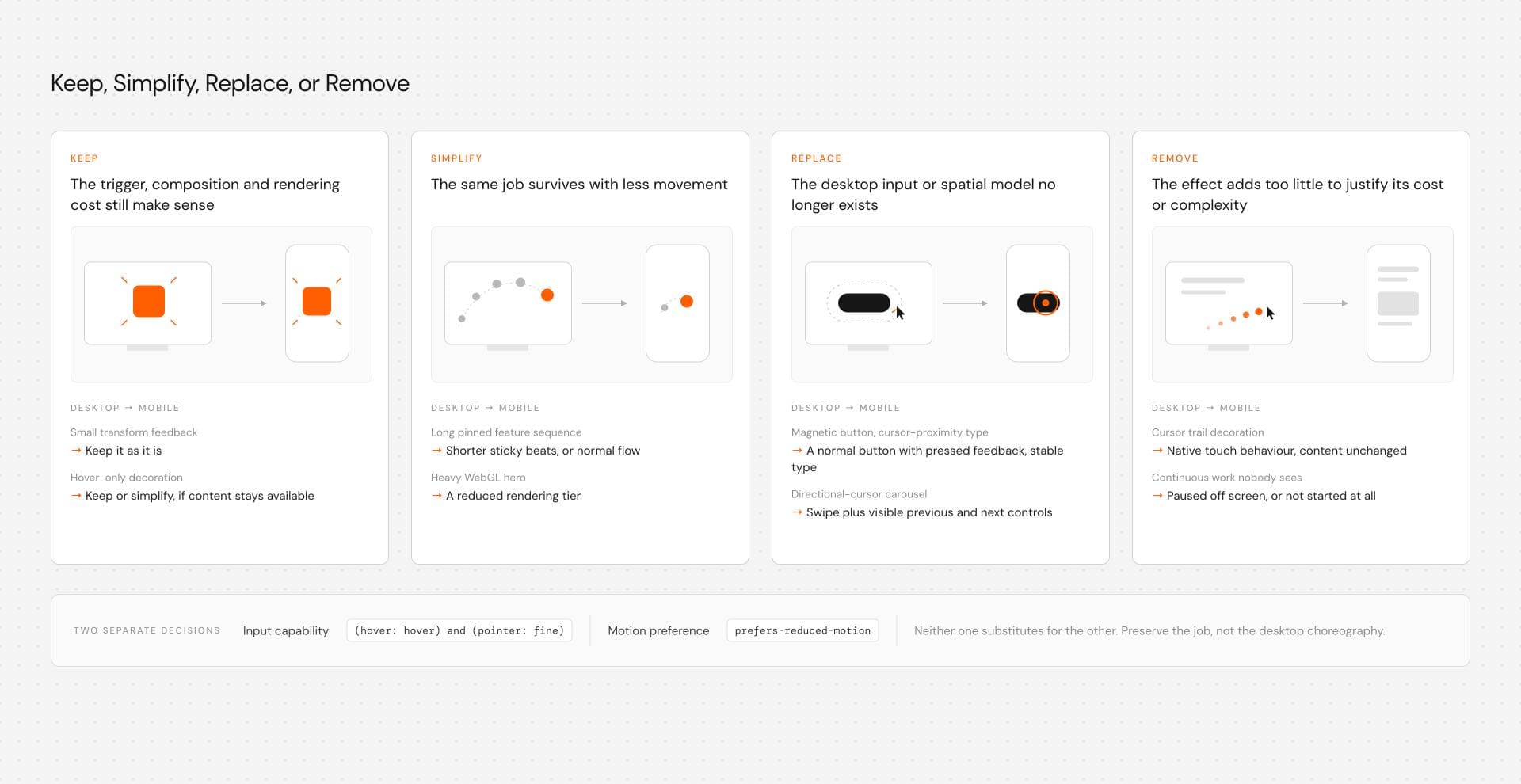
A useful decision model is Keep, Simplify, Replace, or Remove. Keep the effect when its trigger, composition, and runtime cost still make sense. Simplify it when the same interaction job survives with less movement. Replace it when the desktop input model no longer exists. Remove it when the effect contributes too little to justify the complexity.
Responsive Motion Is Not a Smaller Desktop Animation
Responsive layout already teaches us that a narrow screen is not simply a wide screen squeezed until everything fits. Interaction deserves the same treatment.
When a page moves from desktop to phone, at least four things can change at once: the available space, the primary input, the rendering constraints, and the user's motion preference. Those dimensions overlap, but they are not interchangeable.
Consider a card that uses hover to add movement to an image and emphasize supporting copy. On desktop, the pointer enters, the image shifts slightly, and the card gains depth. Shrinking that card to calc(100vw - 32px) solves none of the mobile interaction questions. There may be no convenient hover state. The user's thumb may cover part of the card. If required information is hidden until hover, the responsive design has preserved the animation while breaking access to the content.
A better mobile version keeps essential information visible, preserves the card's main action, and uses touch feedback only where that feedback still helps. The interaction job survives, but the choreography changes. This is why mobile web animation should begin with the interaction question rather than the breakpoint question. Ask what the motion is doing. Is it revealing information, giving feedback, directing attention, establishing continuity, creating atmosphere, or rewarding exploration?
Once that job is clear, you can decide whether the same movement still makes sense on touch. Sometimes it does. Sometimes a simpler version is better. Sometimes the correct responsive animation is no animation at all.
Design for Capabilities, Not the Word "Mobile"
Screen width tells you about space. It does not reliably tell you how someone is interacting with the page.
A touchscreen laptop can have a wide viewport. A tablet can be connected to a trackpad. A compact desktop window can be narrower than a tablet. Hybrid devices can expose more than one pointing method. CSS gives us better signals than device labels.
The hover media feature describes whether the primary input mechanism can conveniently hover. The pointer feature describes the accuracy of the primary pointing device, including fine and coarse. A coarse pointer often includes finger-based touchscreen input, but it should be treated as an input capability rather than a permanent device category.
any-hover and any-pointer add another layer when secondary input methods matter. A device can support touch and a mouse at the same time. That is why required content should not disappear merely because a fine, hover-capable pointer exists somewhere in the device setup.
A safer capability pattern keeps essential information visible and uses hover only to add optional presentation:
.interactive-card__details { opacity: 1; transform: none;} .interactive-card__image { transform: none;} @media (hover: hover) and (pointer: fine) { .interactive-card__image { transition: transform 240ms ease; } .interactive-card:hover .interactive-card__image, .interactive-card:focus-within .interactive-card__image { transform: scale(1.02); }}The default state works with touch, keyboard, and hybrid input. The hover-capable path adds an enhancement rather than controlling access to information.
Viewport breakpoints are still useful, but use them for layout. Use capability queries for input-dependent behavior. Those are different questions.
A Complete Desktop-to-Touch Adaptation
Take one desktop hover card and adapt its input, content, and motion policies separately.
Imagine a project card with an image, title, supporting description, and link. On desktop, the image lifts slightly on hover. The description remains available in every input mode because it is part of the project's content rather than decoration.
Start with semantic markup:
<article class="project-card"> <a class="project-card__link" href="/projects/example" > <img class="project-card__image" src="/images/example.jpg" width="1200" height="800" alt="" /> <div class="project-card__content"> <h3>Atlas Commerce</h3> <p class="project-card__details"> Product storytelling, motion, and frontend implementation. </p> </div> </a></article>The URL and image path are illustrative. The empty alt assumes the image is decorative because the project name and description already communicate the relevant information. If the image itself conveys unique information, use meaningful alternative text instead. The explicit width and height reserve the image's intrinsic aspect ratio and help prevent avoidable layout movement while the asset loads.
Make the default presentation usable everywhere:
.project-card__link { display: block; color: inherit; text-decoration: none;} .project-card__image { display: block; width: 100%; height: auto; transform: none;} .project-card__details { opacity: 1; transform: none;} .project-card__link:focus-visible { outline: 2px solid currentColor; outline-offset: 4px;}Then add the hover treatment only as an enhancement:@media (hover: hover) and (pointer: fine) { .project-card__image { transition: transform 240ms ease; } .project-card:hover .project-card__image, .project-card:focus-within .project-card__image { transform: scale(1.02); }}This is safer than hiding the description inside the capability query. On a hybrid device, somebody may still tap the card even when the primary pointing device is a mouse or trackpad. Required information remains available regardless of which input they actually use.
Handle motion preference independently:
@media (prefers-reduced-motion: reduce) { .project-card__image { transition: none; transform: none; }}The card's interaction path and content availability do not depend on motion permission. Reduced motion changes the treatment, not whether the component remains understandable.
If a design genuinely needs collapsible secondary content, use an explicit operable disclosure instead of treating hover availability as permission to hide important information.
Hover Does Not Have a Touch Equivalent
One of the easiest mobile mistakes is assuming that tap is simply hover with a finger. It is not.
Hover is a low-commitment exploratory state. A pointer can pass across several elements without activating any of them. Tap is usually an explicit action. Requiring a tap merely to reproduce desktop hover can create confusing double-tap behavior where the first tap reveals something and the second performs the action the user thought they requested in the first place.
That means the information or action cannot depend on hover as the only path. If hover changes imagery, depth, or emphasis, the mobile version can omit or simplify that movement. If hover reveals something users actually need, make that information visible or give it an explicit control.
Focus matters too. Desktop motion should not be written as :hover and forgotten if the component is keyboard reachable. Essential information and controls need a usable path regardless of input method. Hover can enhance an interaction, but it should not own information the user needs.
Cursor Effects Should Usually End at the Cursor
Custom cursor systems make the translation problem especially obvious.
A desktop cursor effect may depend on continuous pointer coordinates, proximity, velocity, directional intent, or magnetic attraction. The whole interaction is built around a persistent pointer moving independently of the page. Touch does not provide the same interaction model.
Trying to simulate a cursor on touch usually produces a weak imitation of the desktop idea rather than a useful mobile interaction. A finger touches a location only during contact, covers part of the content, and normally exists to scroll or activate something. There is no permanent pointer gliding around the screen waiting to be decorated.
That means a cursor-proximity text treatment may become stable typography on touch. A magnetic button may become a normal button with clear pressed feedback. A trailing cursor treatment may simply disappear while the underlying content remains unchanged.
| Desktop behavior | Touch adaptation |
|---|---|
| Continuous pointer position | No persistent cursor |
| Proximity-driven typography | Stable readable typography |
| Pointer velocity or distance | Optional tap or press feedback |
| Cursor decoration | Native touch behavior |
The mobile version can preserve visual identity, hierarchy, and readability without pretending the desktop input mechanism still exists. For pointer-driven effects, ask what remains valuable after the cursor disappears. That is the part worth adapting.
Mobile Viewports Change Scroll Choreography
Scroll effects can survive touch and still fail on mobile because the composition around them no longer has enough room.
Desktop storytelling often relies on large pinned sections. A visual stays fixed while text enters beside it. Several beats share one screen. Generous whitespace gives the interaction time to breathe. On a phone, the same section may have a much shorter usable viewport once browser controls are involved. Copy wraps to more lines. Images become taller relative to the viewport. A composition that comfortably displayed a render, headline, paragraph, and navigation rail on desktop can become a cramped stack competing for the same vertical space.
The mistake is preserving the pin simply because the pin still technically works. Preserve the narrative sequence instead.
A desktop product story might keep one product render sticky while four feature descriptions transition beside it. On mobile, the same content can become a vertical sequence where each feature gets its own supporting image or state before the document naturally continues.
This is the same narrative dependency translated into a viewport that can support it.
Use viewport units deliberately
Modern viewport units provide more options than the old 100vh assumption. svh represents the small viewport, lvh the large viewport, and dvh the dynamic viewport as browser UI expands or contracts.
They can help when a composition genuinely depends on viewport height, but they are not automatic fixes for mobile scroll choreography.
A section like this may be appropriate in some contexts:
.story { min-height: 100dvh;}The important question is what the layout expects while that viewport changes. Dynamic browser UI can alter dvh during scrolling, which matters if a JavaScript timeline or pin calculation assumes the section's measured dimensions remain stable.
For some designs, 100svh provides a more predictable minimum. For others, normal document flow is better than any viewport-height lock. Choose the unit based on the layout job, then test what happens when mobile browser chrome expands and contracts.
Source order matters too. Content should still make sense when sticky positioning, transforms, staged opacity, or JavaScript timelines are removed. If animation is the only thing keeping the reading order coherent, the fallback becomes a reconstruction rather than an adaptation. Preserve the narrative dependency.
Phones Also Have a Different Rendering Budget
Mobile adaptation is not only an interaction problem. Rendering cost still matters.
A developer workstation can make questionable motion decisions look extremely healthy. Target phones may have different CPU, GPU, memory, thermal, and battery constraints, and the real page is usually doing more than an isolated effect demo. Images are decoding, application state is changing, video may be playing, scroll work is running, and other effects may be competing for the same resources.
The useful conclusion is not that is that desktop success is not evidence of mobile viability. Continuous work deserves particular attention. Full-screen Canvas rendering, WebGL scenes that never pause, expensive postprocessing, large filtered surfaces, dense particle systems, scroll calculations that continue outside the active section, and pointer loops that remain alive after the related interaction has been disabled can all keep consuming resources after their value has disappeared.
A concrete mobile diagnostic should use the real production route rather than an isolated effect. Open it on at least one target-class phone, scroll into the interaction repeatedly, background and restore the browser, leave the effect offscreen, and compare the full rendering configuration with the reduced tier. Use browser performance tooling where available to inspect long tasks, scripting, rendering, and whether expensive loops continue when the visual is no longer active.
The pass condition is that the page remains responsive, readable, controllable, and proportionate to the value the effect adds while the rest of the route is doing normal production work.
WebGL Needs a Mobile Rendering Tier
WebGL makes responsive motion especially concrete because visual quality and rendering cost can often be separated into deliberate tiers.
A desktop hero might render at a higher device pixel ratio, use several postprocessing passes, keep a dense particle field alive, and run expensive shader work across most of the viewport. There is no rule saying the phone must use exactly the same configuration to preserve the art direction.
Instead, define a mobile rendering tier. Depending on the effect, that may mean reducing effective DPR, simplifying shaders, reducing particles, lowering geometry density, shrinking textures, removing bloom or other postprocessing, pausing the render loop while the scene is offscreen, or replacing the scene with a static poster when the payoff no longer justifies the runtime cost.
Treat numeric DPR choices as effect-specific tuning rather than a universal mobile rule.
| Tier | Treatment |
|---|---|
| Desktop/full | Full scene where the visual payoff justifies the cost |
| Mobile/reduced | Lower quality settings, fewer effects, simpler rendering |
| Static | Poster or static composition preserving hierarchy and content |
Define explicit scene tiers, then tune their values on target devices:
const mobileTier = { maxDpr: 1.5, postprocessing: false, particleCount: 600,}; const desktopTier = { maxDpr: 2, postprocessing: true, particleCount: 1800,};These values are illustrative. The useful pattern is the existence of explicit tiers that can be tested against the actual scene and target devices.
A render loop should also have a lifecycle. If a WebGL scene is completely offscreen and contributes nothing during that period, pausing or reducing continuous rendering can avoid unnecessary work. The exact implementation depends on the rendering stack and whether the scene needs continuous simulation while hidden.
A poster is not failure. A full interactive scene that makes the rest of the page feel broken is.
Any poster fallback should preserve the essential HTML content around the visual. Critical copy, navigation, or controls should not be baked into a static image simply because the renderer has been removed.
Swipe Is Not Hover with a Finger
Carousels and navigation systems create another common translation problem.
A desktop carousel may use cursor direction, hover zones, or pointer proximity to communicate where the next slide will come from. That can work with a precise pointer. On touch, the same interaction needs controls people can reach and understand.
Swipe can be appropriate because it maps naturally to horizontal browsing, but it should not become the only control merely because touch is available. Visible previous and next controls, meaningful active states, keyboard support where relevant, and usable touch targets still matter.
For touch targets, distinguish accessibility requirements from broader ergonomic advice. WCAG 2.2's Target Size (Minimum) defines a 24 by 24 CSS pixel AA criterion with specific exceptions. Teams may deliberately choose larger controls for comfort, but a larger recommendation should not be described as though it were the WCAG criterion itself.
The broader principle stays the same: adapt the control path before worrying about preserving the exact animation. A desktop directional cursor might become swipe plus visible arrows. A complex clip-path transition can remain if it still reads clearly at the smaller scale. If the transition becomes visually muddy or obscures orientation, simplify it.
The motion can survive. The desktop input model does not have to.
Mobile Fallback and Reduced Motion Are Different Decisions
Mobile fallback and reduced motion are often bundled together as though they solve the same problem. They do not.
A person using a phone may be perfectly comfortable with motion. They simply need an interaction that works with touch, a smaller viewport, and that device's rendering conditions. A person using a large desktop monitor may explicitly request less motion.
prefers-reduced-motion represents a user preference. It should not be used as a substitute for input detection, and input capability should not be used as a substitute for motion preference.
Treat the two as separate axes:
| No motion preference | Reduced motion | |
|---|---|---|
| Fine pointer / hover | Pointer-capable standard motion | Pointer-capable reduced motion |
| Coarse pointer / no hover | Touch-safe standard motion | Touch-safe reduced motion |
The JavaScript architecture should preserve the same independence. Touch-safe functionality can remain the baseline, while pointer-specific behavior is added only when the environment supports it:
const canHover = window.matchMedia( "(hover: hover) and (pointer: fine)").matches; const reduceMotion = window.matchMedia( "(prefers-reduced-motion: reduce)").matches; // Keep the baseline interaction usable with touch.enableTouchSafeInteraction(); // Add optional pointer behavior when appropriate.if (canHover) { enableOptionalPointerEnhancements();} // Choose the motion treatment independently.if (reduceMotion) { applyReducedMotion();} else { applyStandardMotion();}These helper functions are illustrative rather than browser APIs. A production implementation still needs setup, cleanup, and appropriate handling if capabilities or preferences change while the page remains open.
This structure matters on hybrid devices. A touch-enabled laptop may report a fine, hover-capable primary pointer while still allowing somebody to interact directly with the touchscreen. Static capability detection should therefore decide which enhancements are available, not remove the touch-safe baseline. If an interaction genuinely needs to respond differently to the device producing a particular event, the event's pointerType can provide additional runtime context.
The important architectural rule is that touch-safe functionality remains available even when pointer enhancements are enabled, while reduced motion stays a separate presentation decision.
In Next.js, window.matchMedia() belongs in browser-aware client code rather than during server rendering.
Keep, Simplify, Replace, or Remove
The framework introduced at the start becomes useful when the adaptation decision is no longer obvious.
| Decision | Use it when |
|---|---|
| Keep | The trigger, composition, and rendering cost still make sense |
| Simplify | The same interaction job works with less movement or complexity |
| Replace | The desktop input or spatial model no longer exists |
| Remove | The effect contributes too little to justify its cost or complexity |
Applied to common interaction classes, that looks like this:
| Desktop behavior | Better mobile decision | Why |
|---|---|---|
| Hover-only decoration | Keep / simplify if content remains available | Hover is enhancement, not access |
| Cursor proximity typography | Replace / simplify with stable type or touch-safe feedback | No persistent cursor |
| Long pinned feature sequence | Simplify / replace with shorter sticky beats or normal flow | Shorter viewport changes composition |
| Heavy WebGL hero | Simplify to a reduced tier or replace with poster | Rendering cost may outweigh value |
| Small transform feedback | Keep when trigger and cost still make sense | Interaction survives context change |
The decision is not desktop animation on versus mobile animation off. There is useful territory between those switches.
Test on Real Phones Before Calling It Responsive
Desktop DevTools are excellent for layout work. They are not proof that a mobile interaction feels right. Responsive emulation can catch wrapping problems, breakpoints, and obvious layout issues. It cannot fully reproduce touch feel, actual mobile browser controls, the hardware profile of every target phone, or the way a complex production route behaves over time.
A practical QA matrix should cover at least one recent iPhone in Safari and one Android device in Chrome when those browsers are part of the site's supported audience. If the interaction depends on mixed input capabilities, also test a touch-enabled laptop or tablet with a mouse or trackpad. Add keyboard testing for interactive controls and test reduced-motion behavior independently of device type.
Pinned or viewport-dependent compositions deserve additional checks while mobile browser chrome expands and collapses. WebGL and Canvas effects should be tested after repeated navigation, backgrounding and restoring the browser, and scrolling the effect in and out of view.
Make the pass conditions explicit:
| Scenario | Pass condition |
|---|---|
| Hover-enhanced card | Required content remains available through touch and keyboard |
| Cursor effect | No fake or broken cursor behavior on coarse input |
| Hybrid device | Touch remains usable even when hover capability exists |
| Pinned story | Content order remains understandable without pinning |
| Carousel | Controls remain visible, reachable, and operable on touch |
| WebGL scene | Reduced tier remains responsive or falls back cleanly |
| Reduced motion | Essential state and feedback remain understandable |
| Browser chrome changes | Layout does not collapse or trap scrolling |
| Effect leaves viewport | Expensive continuous work stops where appropriate |
Do not test only whether an animation technically starts. Test whether the interaction remains understandable, controls remain reachable, content order survives, the page still scrolls naturally, and the visual effect continues to earn the attention and resources it consumes.
Adapt the Interaction, Not Just the Breakpoint
Responsive motion is the discipline of deciding what should remain consistent when input, space, rendering conditions, and user preference change. A good mobile version may move less, move differently, replace one interaction with another, or remove an effect entirely. What matters is preserving hierarchy, feedback, usability, pacing, and intent rather than protecting desktop choreography simply because it already exists.
Editable source makes those decisions easier because input handling, timelines, rendering loops, responsive logic, and fallbacks remain available to inspect and change. Hyperiux Vault provides source-first interaction patterns for React and Next.js, so teams can adapt those implementation details to the input methods, viewport constraints, and rendering conditions of their own sites rather than treating the interaction as a sealed visual preset.
That does not mean every effect is automatically appropriate for mobile. The useful workflow is still to inspect the implementation, decide whether to keep, simplify, replace, or remove the behavior, and test the result on the devices where it will actually run.